iOS subscription levels and events like subscription upgrades and downgrades can cause a lot of confusion. This guide summarises everything you need to know on these subjects.
First, you need to understand the following two concepts used by Apple on the App Store Connect:
- Subscription group
- Service Level
What is a subscription group?
A subscription group is a set of in-app products that unlock access to a set of app’s features.
You must add a product to a group when creating it. So you must have at least one subscription group. One group is enough in many cases for most apps. A group has the following important characteristics:
- A user can have only one subscription within one group
- A user can use the introductory offer only once within one group
It is recommended to avoid creating more than one group with products that unlock the same access to your premium features. In this case, a user can occasionally subscribe twice to get the same features.
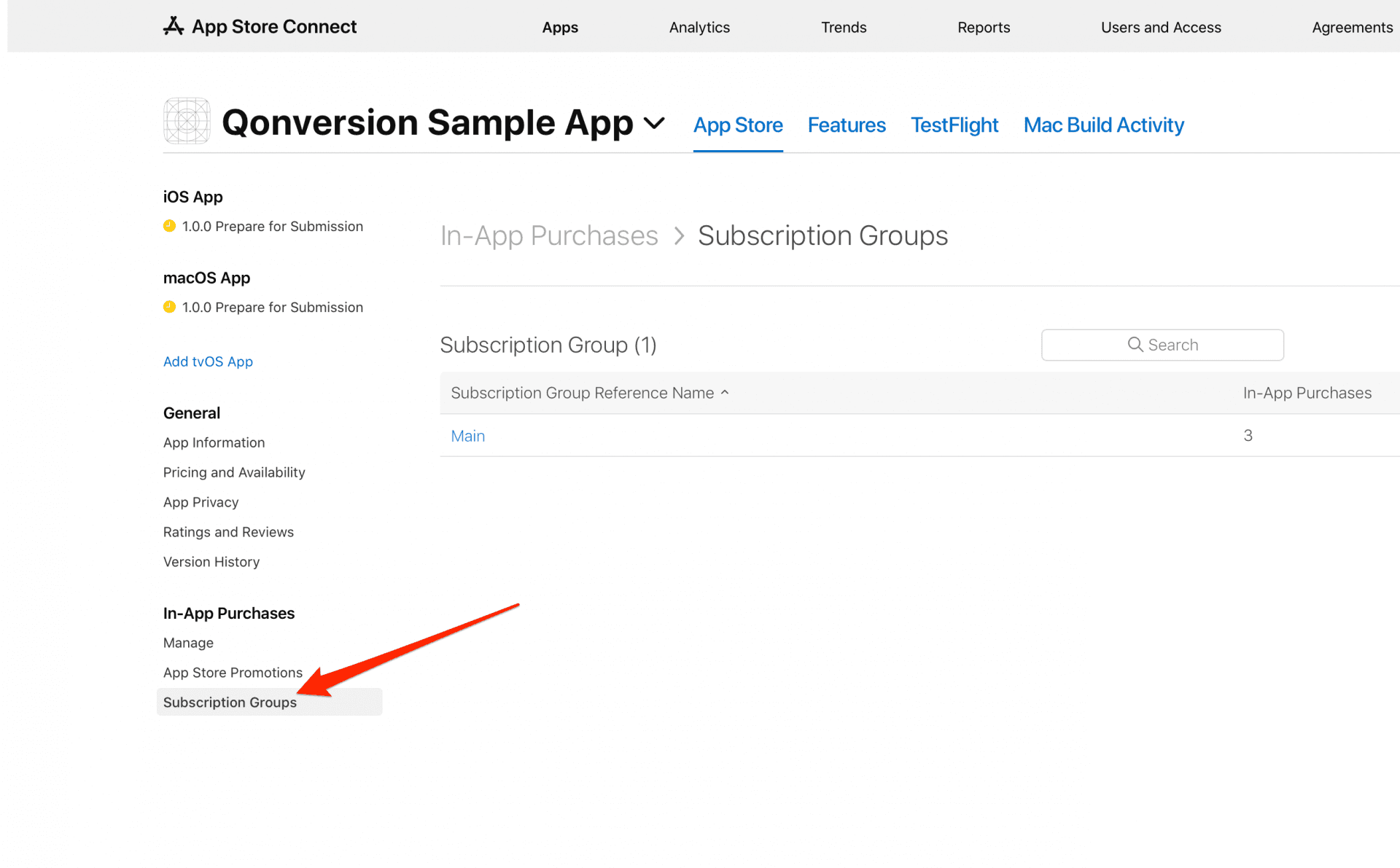
Your available subscription groups are in your App Store Connect account. Choose your app and select Subscriptions Groups under the In-App Purchases title.
Subscription Groups
What is a subscription service level?
In-app products unlock premium access to your app for your users. For example, in some well-known apps, the product unlocks access to the following app service:
- YouTube Premium
- Netflix Standart, Netflix Premium
- Duolingo Plus
You have to manage the user access logic on your app or let Qonversion Permissions handle that for you. However, the App Store provides a subscription service level that essentially distinguishes the premium access a user gets for each product. The App Store needs to know the subscription service level for each product to understand how to handle a subscriber who switches between the products. We’ll dive into that in a moment.
But first, let’s examine how to manage in-app product subscription levels on the App Store.
Navigate to Subscription Groups in your App Store Connect account. You can change the order of the in-app products and combine them by dragging and dropping. Have a look at the video below:
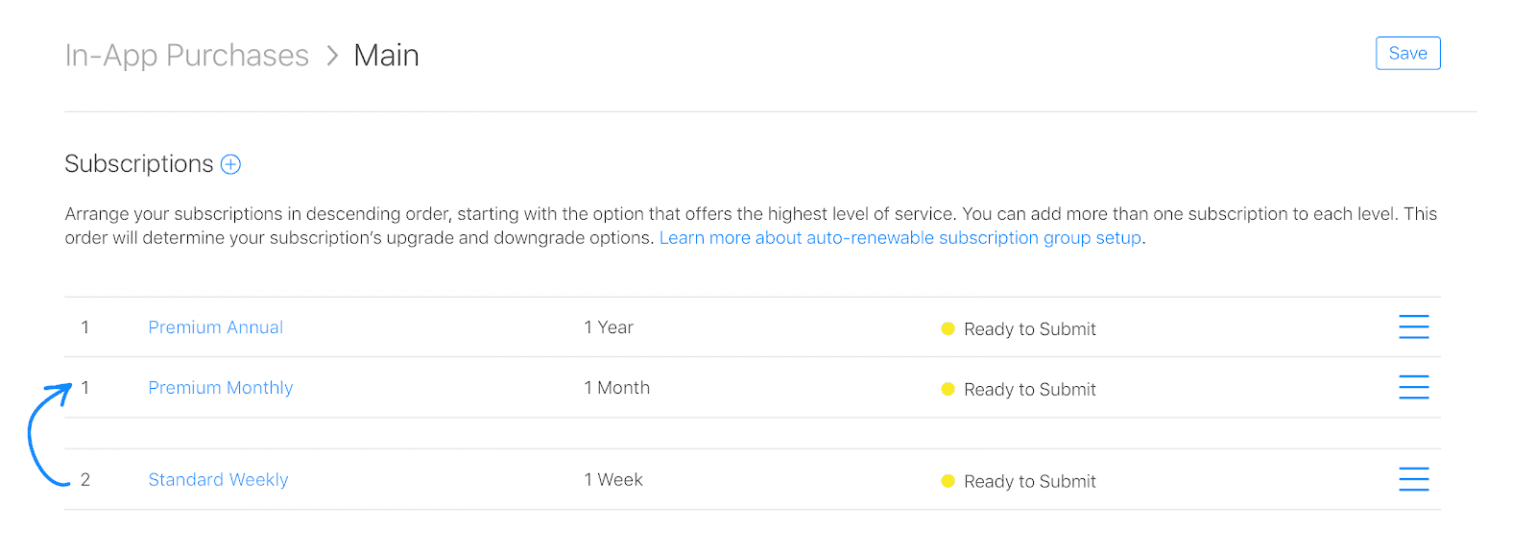
The number you see to the left of your products is a subscription level. So far, we have shown that in-app products within the subscription group may have different service levels. After a user purchases any in-app products, he can upgrade, downgrade, or crossgrade to a different product within this subscription group. A user can also navigate to his subscription settings and see all of the available subscription options within the subscription group of his current subscription.
Subscription Upgrade
Subscription upgrades happen when a user chooses a subscription with a higher service level than his current subscription. For example, a user switches from a standard (level 2) subscription to a premium (level 1) subscription, as shown in the picture below. In case of an upgrade, a user is refunded for the remainder of his current subscription (the remainder of the weekly subscription). The new monthly subscription price is charged. The upgrade is applied immediately.
Subscription levels
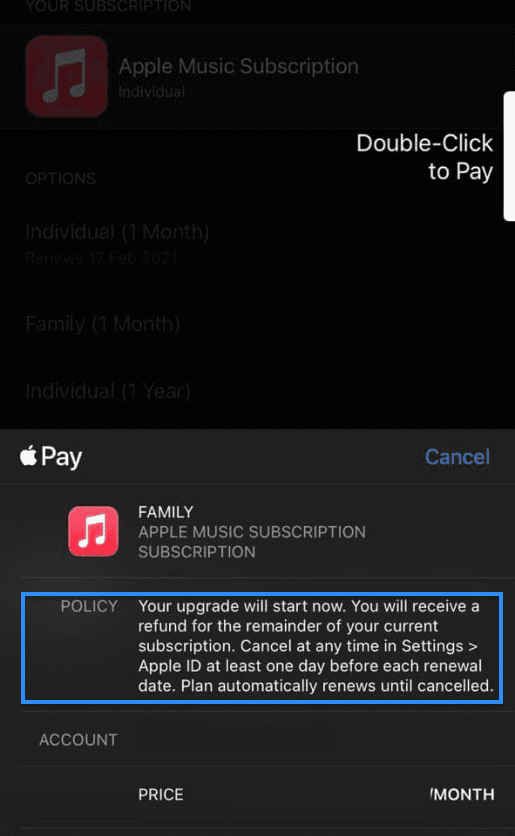
Another example of an upgrade (using the Apple Music app) would be switching from Premium Apple Music to Family Premium:
Subscription Upgrade
How to handle a subscription upgrade in a user receipt?
When a user upgrades a subscription, the following two fields appear in transaction responseBody.Latest_receipt_info in user receipt:
is_upgraded field equals true.The cancellation_date field contains the date of the original subscription cancellation and the date of the partial refund for the original subscription.
You must check that both of these fields are provided. The cancellation_date field alone appears if a full refund is not connected to an upgrade.
To calculate the prorated refund value, divide the unused subscription period by the subscription duration and multiply it by the subscription price. You can calculate the unused period as the time between the cancellation_date described above and the original subscription expiration date:
where transaction_value is the subscription price.
Subscription Downgrade
Downgrade happens when a user switches from a lower service level subscription to a higher one. The change is applied at the end of his current subscription period. The original subscription lapses at the time of his next subscription renewal, and the new lower service level subscription starts.
How do you detect a subscription downgrade in a user receipt?
You have to check the auto_renew_product_id field in responseBody.Pending_renewal_infoThe value of this field must be different from product_id:You can also use Apple’s server-to-server notifications to detect planned subscription changes. This information is contained in the notification of type DID_CHANGE_RENEWAL_PREF. You can check our article on handling Apple server-to-server notifications for more details.
Subscription Cross-grades
Cross-grade happens when users switch between in-app subscriptions with the same service level. Depending on the duration of the cross-grade behavior, subscriptions have different
Same duration cross-grade
Cross-grade between subscriptions with the same duration is handled like an upgrade.
Different duration cross-grade
Cross-grading between subscriptions with different durations is handled similarly to downgrading. The original subscription is active until the next renewal date when a new subscription starts.
Handling in-app subscription events is time-consuming. Building a complex back-end logic on top of the server-side receipt validation would be best. The good thing is that you can hand it over to Qonversion. Qonversion provides
- an out-of-the-box server to validate user receipts
- in-app subscription analytics
- integrations to send accurate subscription data where you need it
It requires just a few lines of code to set everything up in your app.

Michael
CEO at Qonversion
Michael leads Qonversion with a vision to help mobile apps maximize their subscription revenue.